Signing in with DRC Pass (Web Portal)
Many websites and online services let you sign in with your DRC Pass — your
sovereign digital identity. You don’t need a separate username for each site:
you log in once with DRC Pass and approve what information the site may see.
This guide walks through the whole flow, step by step.
Before you start, you need:
- Your National ID
- Your DRC Pass password
- Your registered phone or email (to receive a one-time code)
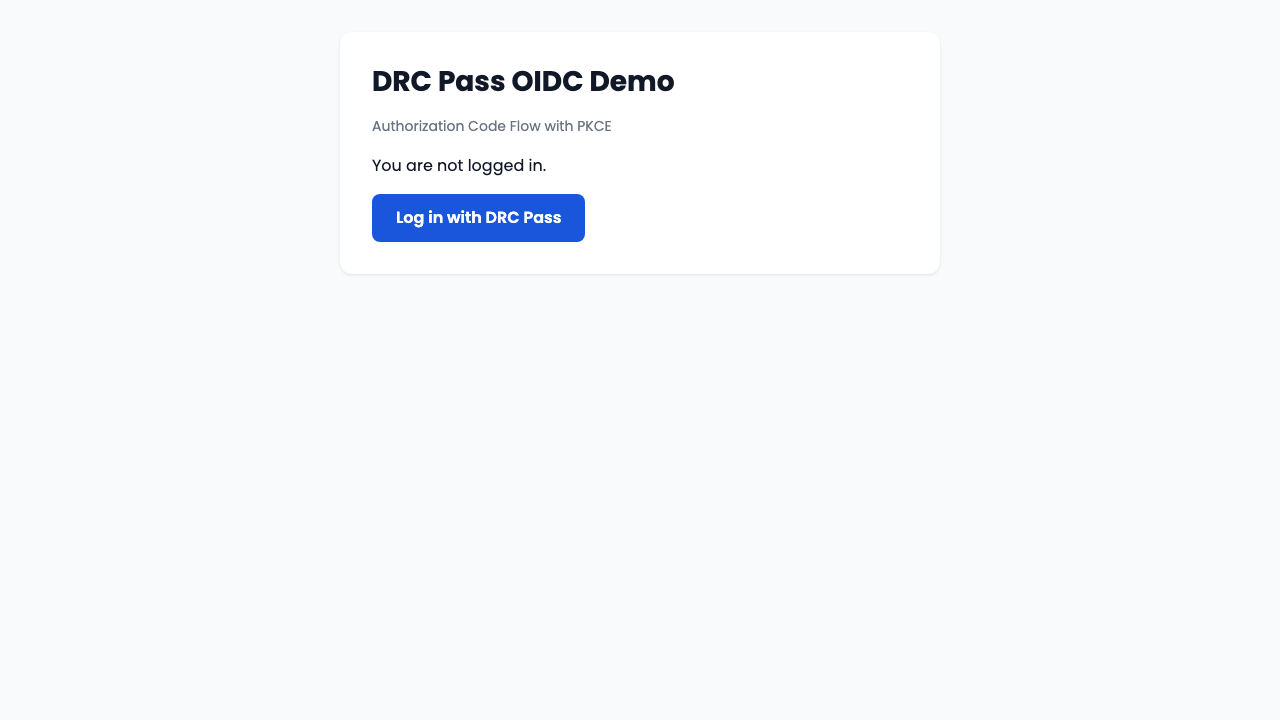
Step 1 — Choose “Log in with DRC Pass”
On the website or app you want to use, click the Log in with DRC Pass button.
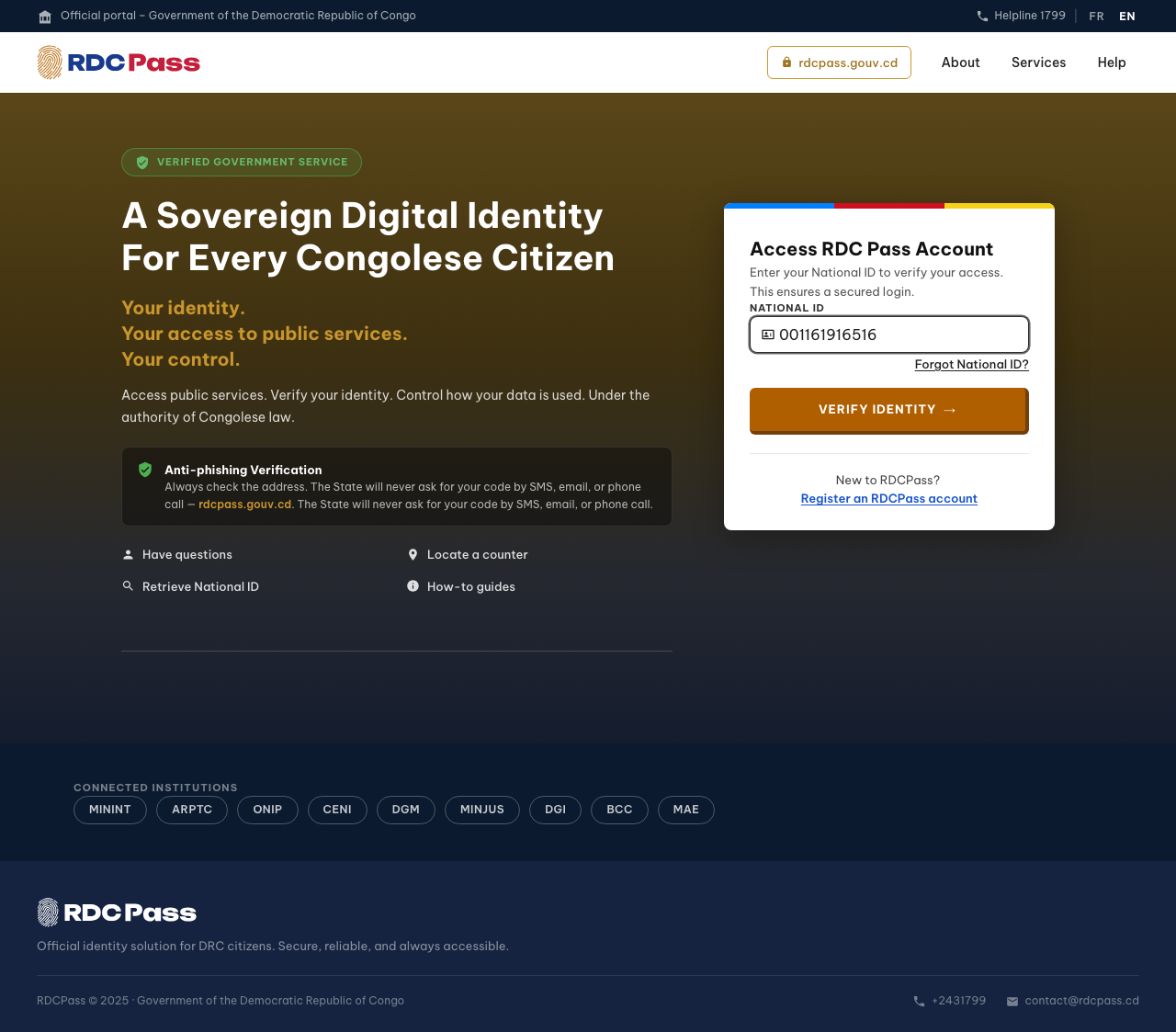
Step 2 — Enter your National ID
You are taken to the secure RDC Pass page. Type your National ID and
select Verify Identity.
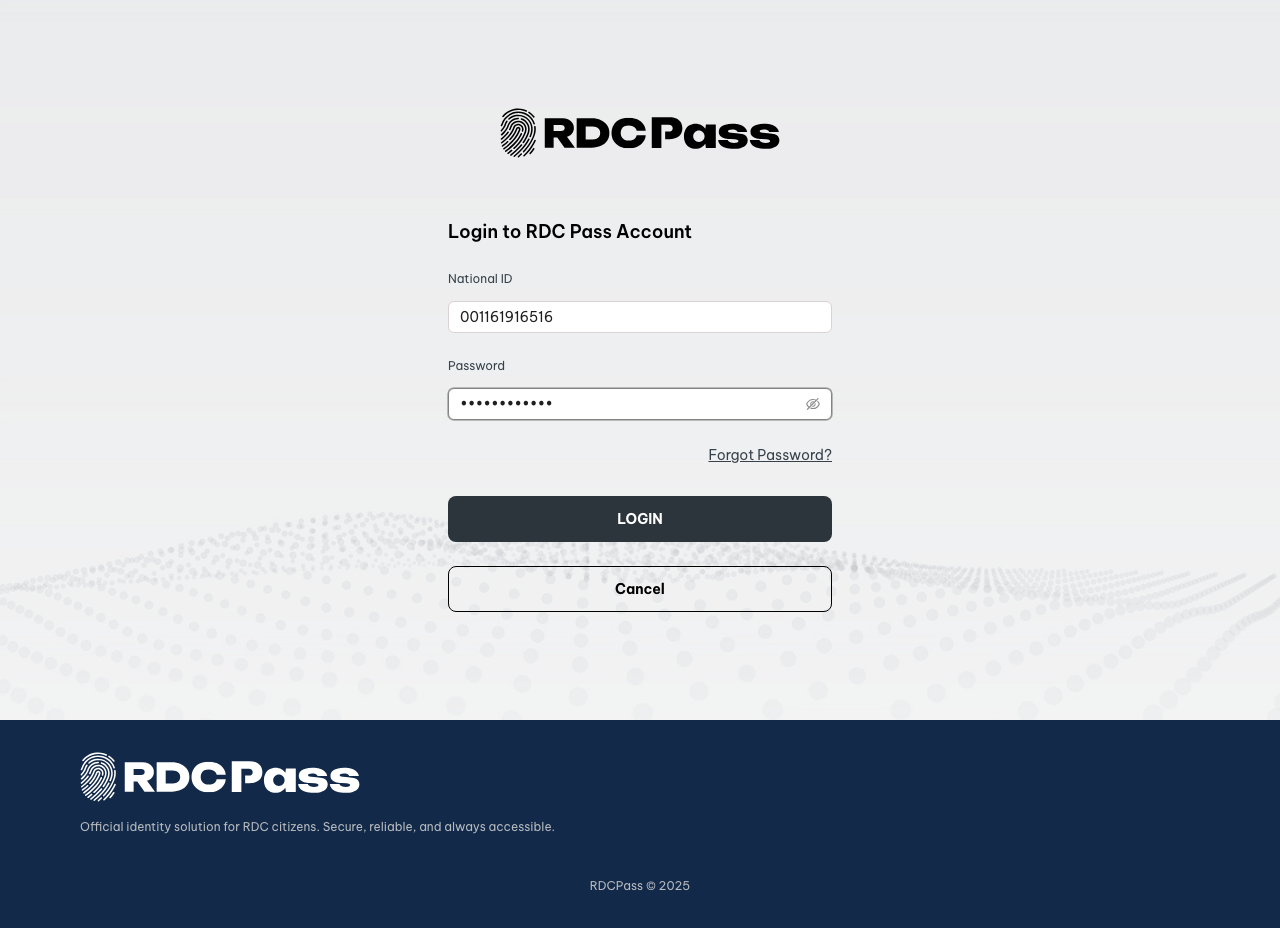
Step 3 — Enter your password
Enter the password for your DRC Pass account and select LOGIN.
If you’ve forgotten it, use the Forgot Password? link on this screen.
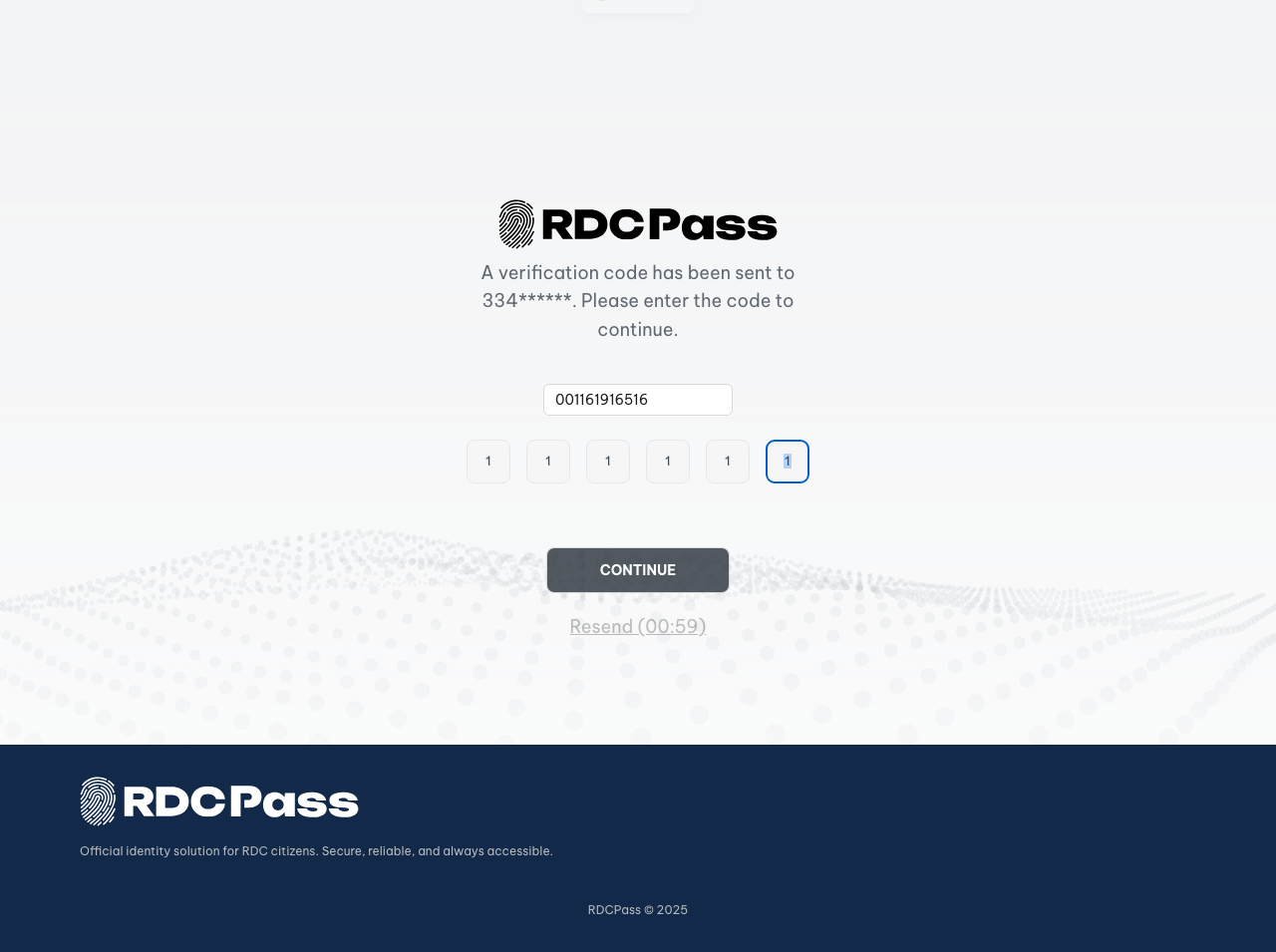
Step 4 — Enter the one-time code
For your security, DRC Pass sends a 6-digit verification code to your
registered phone number (or email). Enter the code and select CONTINUE.
If the code doesn’t arrive, wait for the countdown and use Resend.
Tip: Depending on your device and account, DRC Pass may instead offer a
face check (using your camera) or an email code. Just follow the
on-screen prompt — the rest of the flow is the same.
Step 5 — Review and approve
DRC Pass shows exactly what information the website is requesting — for
example your name, date of birth, and contact details. Review the list and
select Authorize to continue.
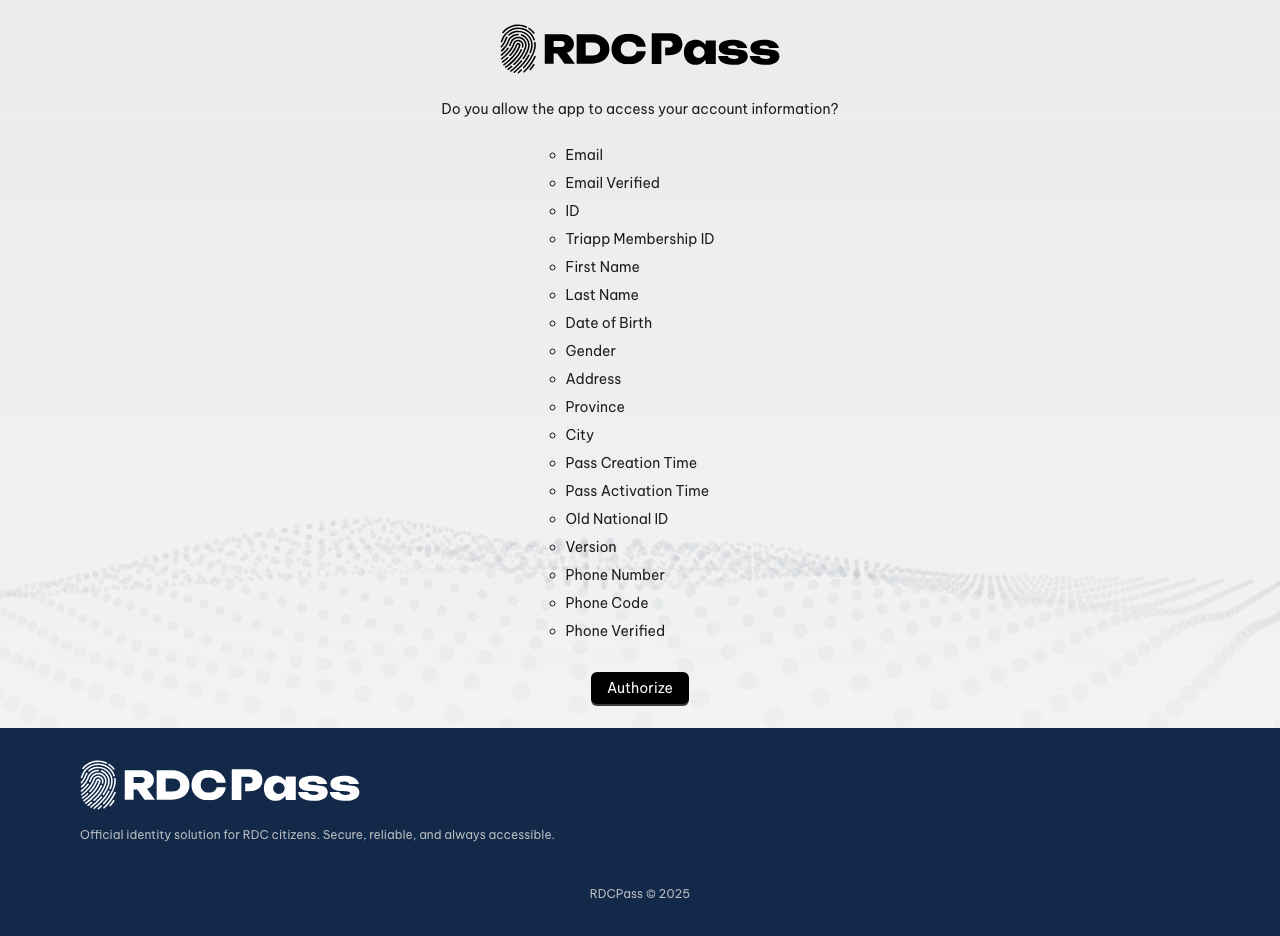
You usually only see this screen the first time you sign in to a site (or
when the requested information changes). You stay in control — you can decline,
and you can review or revoke access later.
Step 6 — You’re signed in
You’re returned to the website, now signed in with your verified identity.
The site receives only the information you approved.
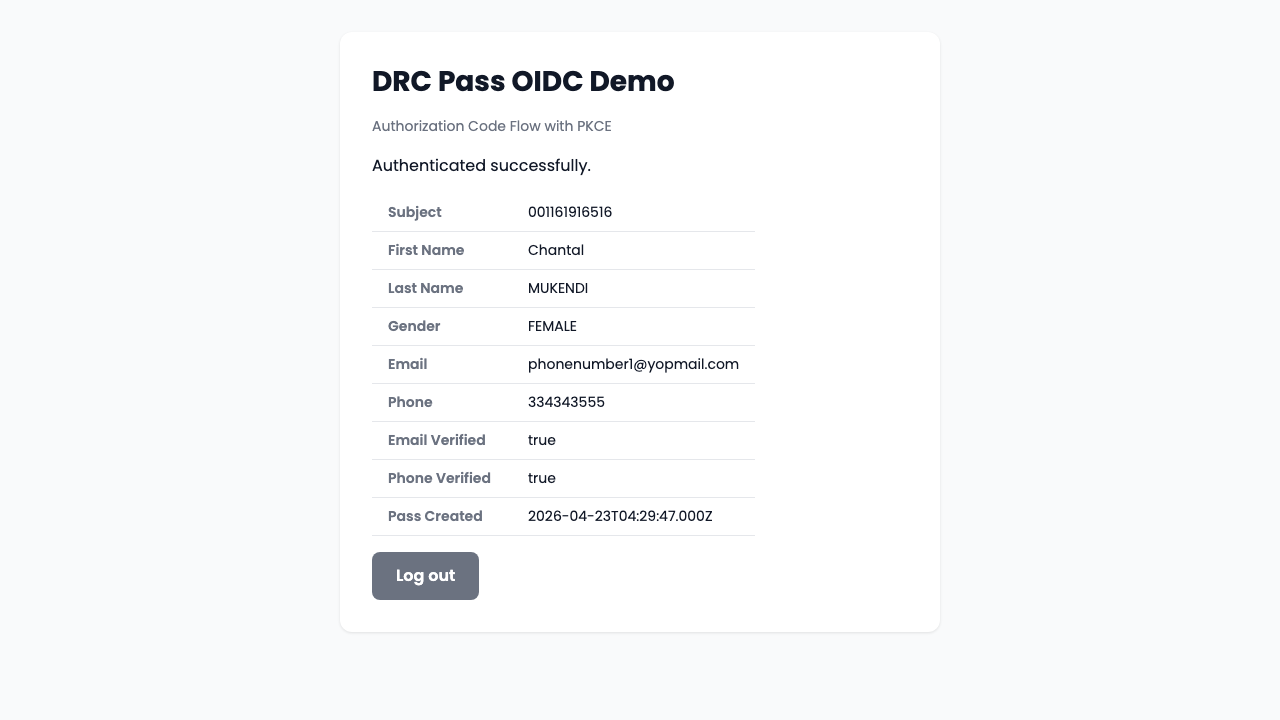
(The details shown above are from a sample test account.)
Frequently asked
Do I need a password for every website?
No. DRC Pass is your single secure login. Each site only receives the
information you approve.
What if I don’t get the verification code?
Check that your phone number / email is correct and has signal, then use
Resend. If it still doesn’t arrive, see Self Enrollment
to confirm your contact details are registered.
Is my information safe?
Yes. You always see what a site is asking for before anything is shared, and the
connection is encrypted end to end. See
Introduction to DRC Pass to learn more.